How to Fix Grammarly Not Working in Chrome 5 Quick Fixes


Asif Mohammad Sovon
Asif Mohammad Sovon, IT Assistant at Bangladesh Air Force and Fileion tech writer, simplifies tech t...
Step-by-Step Guide: How to Fix Grammarly Not Working in Chrome
Fix 1: Enable the Grammarly Extension in Chrome
Fix 2: Reload the Extension Manually
Fix 3: Clear Chrome Cache and Cookies
Fix 4: Disable Conflicting Extensions
Fix 5: Reinstall the Grammarly Extension
Why did Grammarly suddenly stop working in Chrome?
Does Grammarly work in all Chrome text fields?
How do I know if Grammarly is active in Chrome?
You open Chrome, start typing, and Grammarly is just... gone. No suggestions. No underlines. Nothing.
It happens more often than you think. The Grammarly Chrome extension can stop working due to a browser update, a conflicting setting, or a simple cache issue. The good news? Most of these problems take less than two minutes to fix.
In this guide, you will learn exactly why Grammarly stops working in Chrome and how to fix it with five practical, tested solutions.
Let's dive into the basics before moving to the hands-on steps.
What is Grammarly for Chrome?
Grammarly for Chrome is a browser extension that checks your writing in real time. It works inside Gmail, Google Docs, LinkedIn, Twitter, and most web-based text editors.
Students use it to clean up essays. Professionals rely on it for emails and reports. Freelancers use it to sharpen content before submitting it.
When it works, it catches grammar errors, spelling mistakes, tone issues, and clarity problems as you type. When it stops working, your writing loses that safety net entirely. Key Features include Real-Time Grammar and Spell Check, Tone and Clarity Suggestions, and Works Across Multiple Platforms.
Step-by-Step Guide: How to Fix Grammarly Not Working in Chrome
Fix 1: Enable the Grammarly Extension in Chrome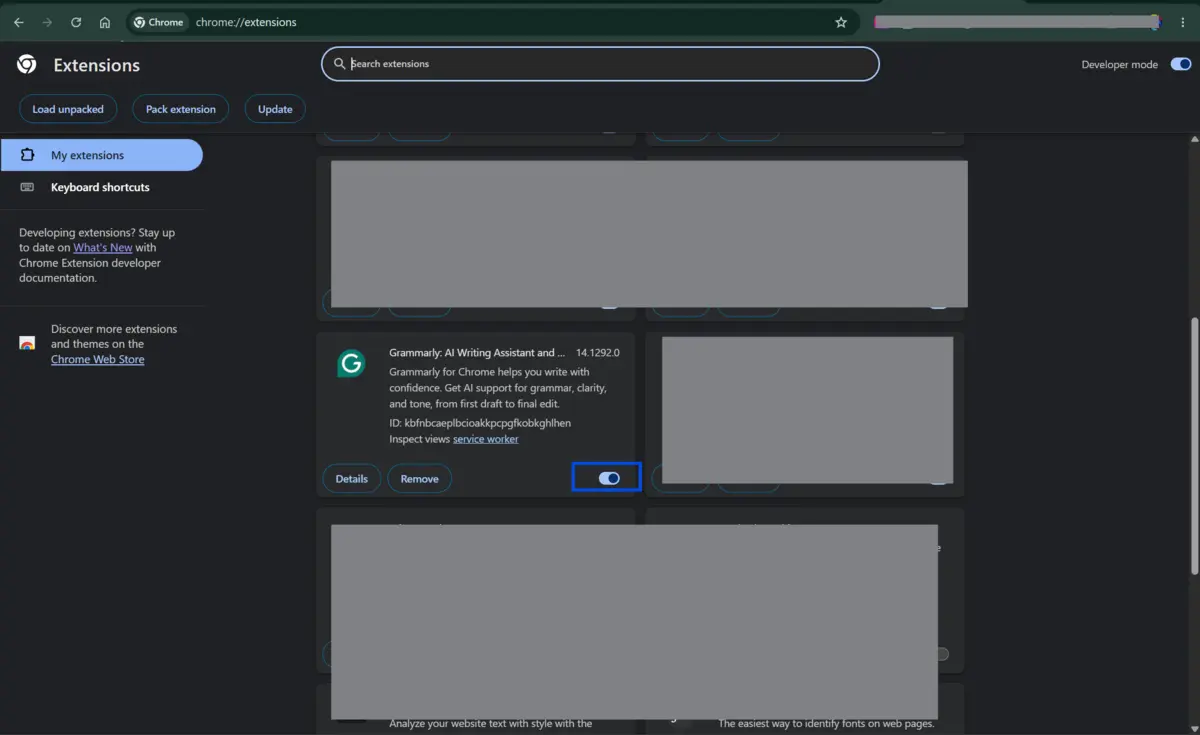
-
Open Chrome and type
chrome://extensionsin the address bar. -
Find Grammarly in the list and make sure the toggle is turned on (blue).
-
If it is off, turn it on and reload your current tab.
This is the most common reason Grammarly stops working. Chrome sometimes disables extensions after an update without warning.
Fix 2: Reload the Extension Manually
-
On the same
chrome://extensionspage, click the refresh icon next to Grammarly. -
Close and reopen Chrome completely after refreshing.
Reloading forces the extension to restart its connection with Chrome. This fixes most cases where Grammarly loads but shows no suggestions.
Fix 3: Clear Chrome Cache and Cookies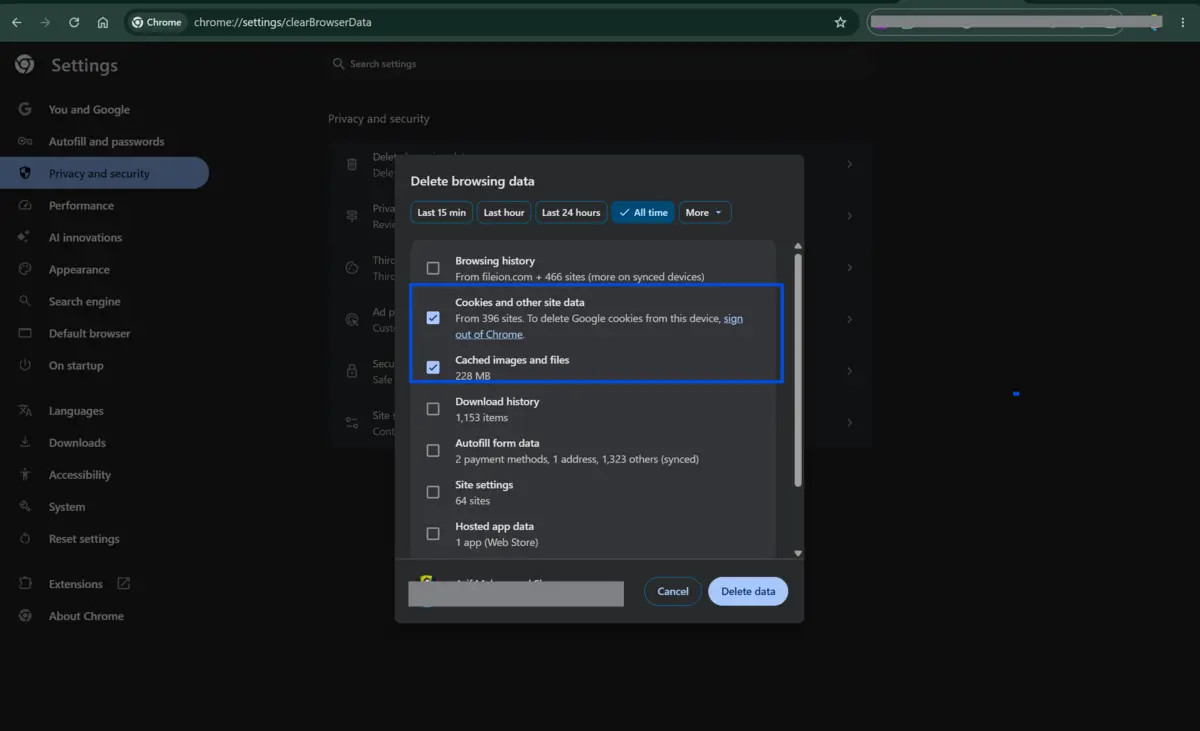
-
Press
Ctrl + Shift + Deleteon Windows orCmd + Shift + Deleteon Mac. -
Select "All time" as the time range, check "Cached images and files" and "Cookies," then click "Clear data."
-
Restart Chrome and check if Grammarly is working again.
A bloated cache can prevent extensions from running properly. Clearing it takes under 30 seconds.
Fix 4: Disable Conflicting Extensions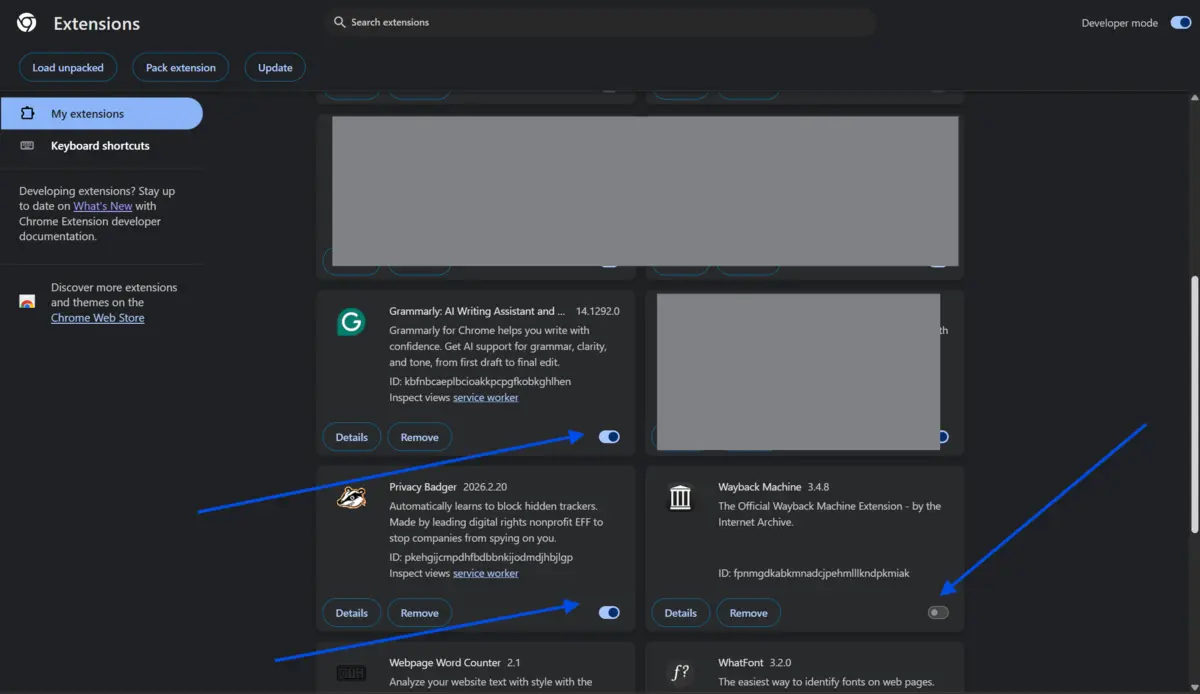
-
Go back to
chrome://extensionsand temporarily disable other extensions one by one. -
Reload your page after each one to identify which extension is blocking Grammarly.
Ad blockers, privacy tools, and VPN extensions are the most frequent culprits. Once you identify the conflict, you can choose to keep one or adjust permissions.
Fix 5: Reinstall the Grammarly Extension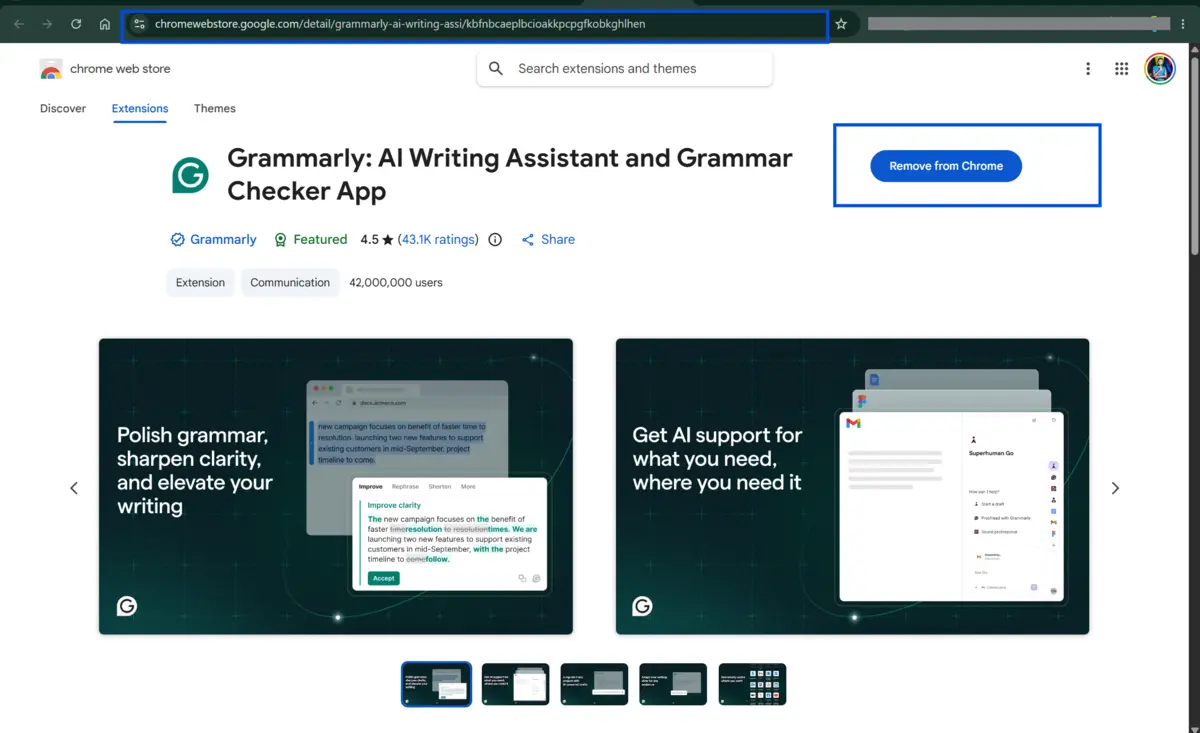
-
On the
chrome://extensionspage, click "Remove" under Grammarly. -
Visit the Chrome Web Store, search for Grammarly, and click "Add to Chrome" to reinstall it fresh.
A clean reinstall fixes corrupted extension files that no other method can repair.
Quick Tips
-
Always keep Chrome updated. Outdated versions frequently break extension compatibility.
-
If Grammarly works on some sites but not others, check site-specific permissions under the extension settings.
-
Sign out and sign back into your Grammarly account after reinstalling to sync your preferences.
Common Mistakes to Avoid
-
Running too many extensions slows Chrome down and causes silent conflicts. Keep only what you actively use.
-
Toggling settings without restarting Chrome means changes do not fully apply. Always close and reopen the browser.
-
If auto-updates are off, your extension may be running an old version. Enable automatic updates in Chrome's extension settings.
Pricing & Availability
Grammarly offers three plans to suit different needs.
The Basic plan is free and includes limited writing assistance and AI chat, which works for occasional use.
The Pro plan costs $12 USD per month and comes with a free trial; no payment is required upfront. It adds full sentence rewrites, tone adjustment, unlimited suggestions, plagiarism detection, AI-generated text detection, and 2,000 AI prompt generations.
The Enterprise plan targets larger organizations and is available through Superhuman Go. Pricing requires contacting the sales team directly. It includes everything in Pro, plus dedicated support, BYOK encryption, custom permissions, and data loss prevention.
For active job seekers, the Pro plan offers the most practical value at an accessible price.
Grammarly is available as a browser extension for Chrome, Firefox, Safari, and Edge, and also works directly inside Microsoft Word and Google Docs through dedicated add-ins.
It also offers a desktop app for Windows and Mac, along with a mobile keyboard for iOS and Android.
Final Verdict
Grammarly is one of the most useful writing tools available for Chrome users. When it stops working, productivity takes a real hit. The five fixes above cover every common cause, from a disabled toggle to a conflicting extension to corrupted files.
Most users solve the problem in under five minutes by working through the fixes in order.
If you want Grammarly running reliably every time you write, download it directly from Fileion for a clean, verified installation and get back to writing with confidence today.
FAQs
Why did Grammarly suddenly stop working in Chrome?
Chrome browser updates often disable or reset extensions automatically. An outdated extension version, corrupted cache, or a conflicting extension can also cause Grammarly to stop functioning without warning.
Does Grammarly work in all Chrome text fields?
Grammarly works in most web-based text fields, including Gmail, Google Docs, LinkedIn, and Notion. However, some browser-based apps block third-party extensions for security reasons, so Grammarly may not appear on every site.
How do I know if Grammarly is active in Chrome?
Look for the green Grammarly icon in your Chrome toolbar. If it appears green, the extension is active. If it is grey or missing, the extension is either disabled or not installed.
Will reinstalling Grammarly delete my settings?
No. Your Grammarly account data, including preferences and writing goals, is stored in the cloud. Reinstalling the extension only removes the local browser file. Sign back in after reinstalling to restore everything.
Is the Grammarly Chrome extension safe to use?
Yes. Grammarly is a widely used and trusted tool. It requests permission to read text fields so it can check your writing. Grammarly states in its privacy policy that it does not sell user data to third parties.
Comments
Let us know about your thoughts
Explore more articles related to Grammarly
Here you will find all the latest tips and tricks about Grammarly. Also you will get many solution of problems which you may face while using this app.

Published at: Apr 16, 2026
Grammarly Desktop vs. Web: Which Version Uses Less RAM?
If your computer slows down while writing, Grammarly might be part of the reason. Both...

Published at: May 18, 2026
Grammarly for Job Seekers: Polishing Your Resume and Cover Letter
You have spent hours on your resume. You have read it five times. You think...


Write Smart. Sound Confident
Grammarly is your AI-powered writing assistant that catches typos, fixes grammar, and refines tone in real time. Whether you’re writing emails, essays, or social posts, Grammarly helps you write clearly and confidently.